Your first game in five minutes
You will make a jump & run from a template, play it, and change one of its rules. Six steps, each with a picture of what you see. Voxcade is installed? Then off you go.
Start Voxcade
Double-click
voxcadein the Voxcade folder (start-voxcade.shon Linux). This opens the launcher.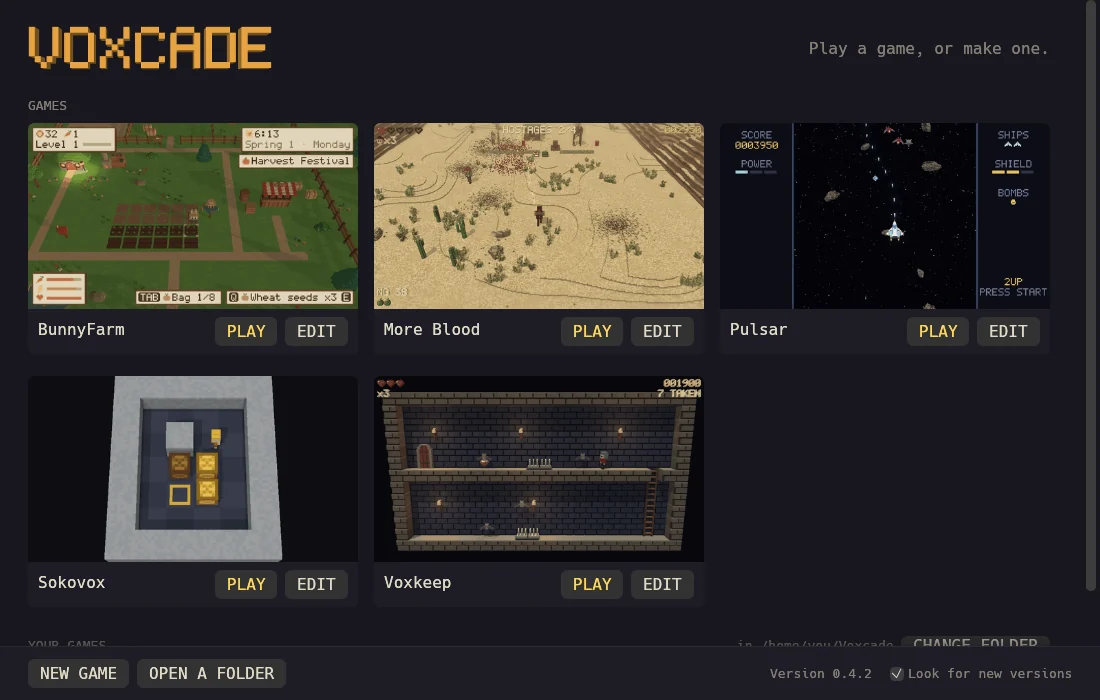
Choose NEW GAME
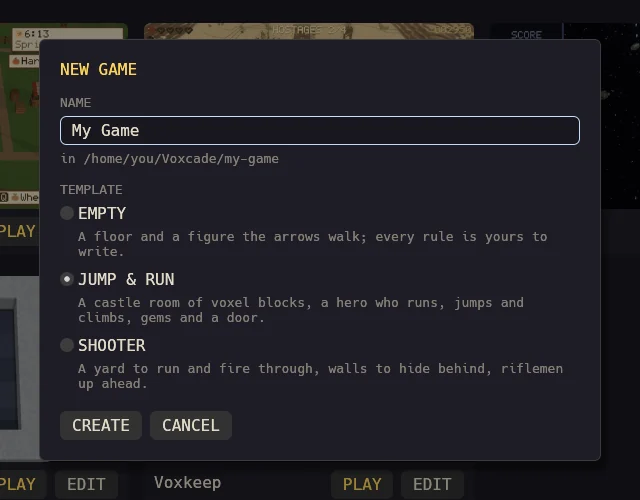
It is at the bottom left. Type a name for your game, pick JUMP & RUN, then choose CREATE.
Your game opens
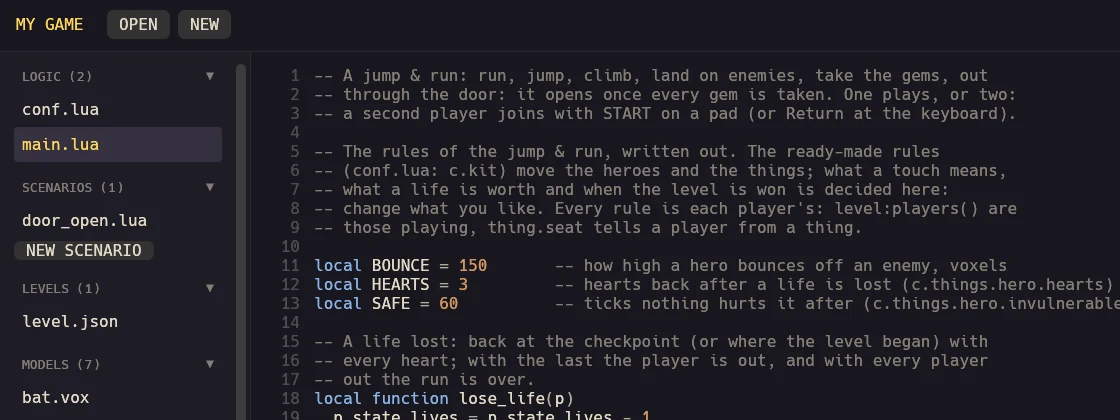
This is the IDE, the workshop where games are made. On the left are your game's files; in the middle is
main.lua, the file with its rules. You need not read it now.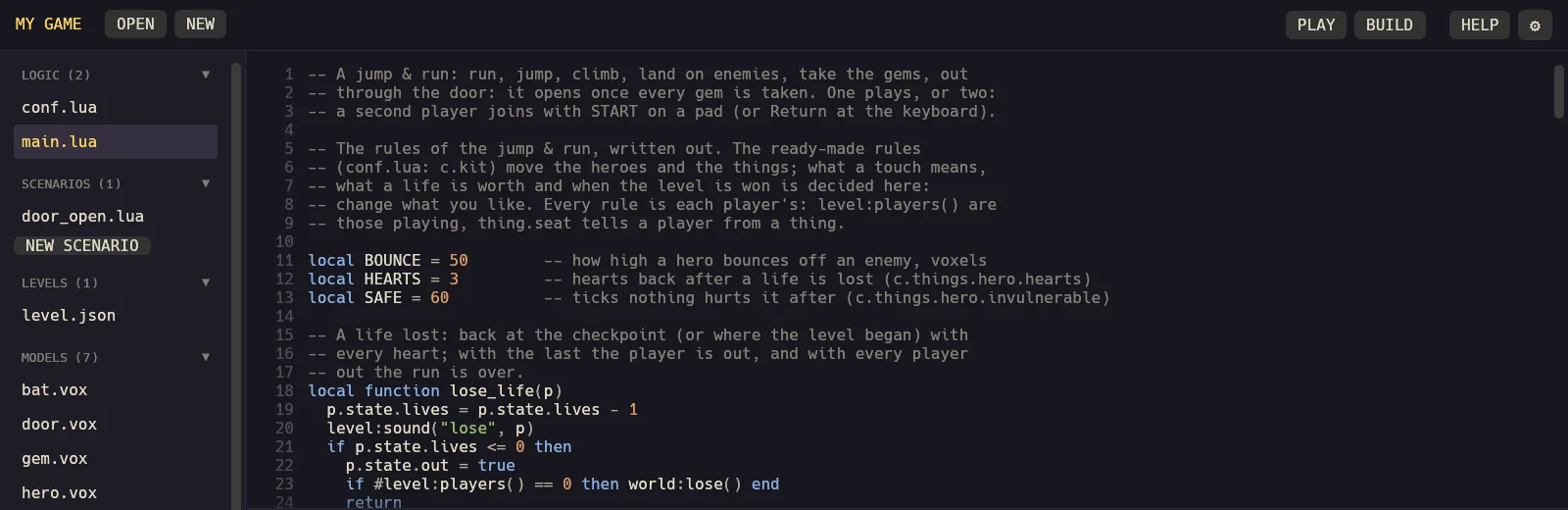
Press PLAY
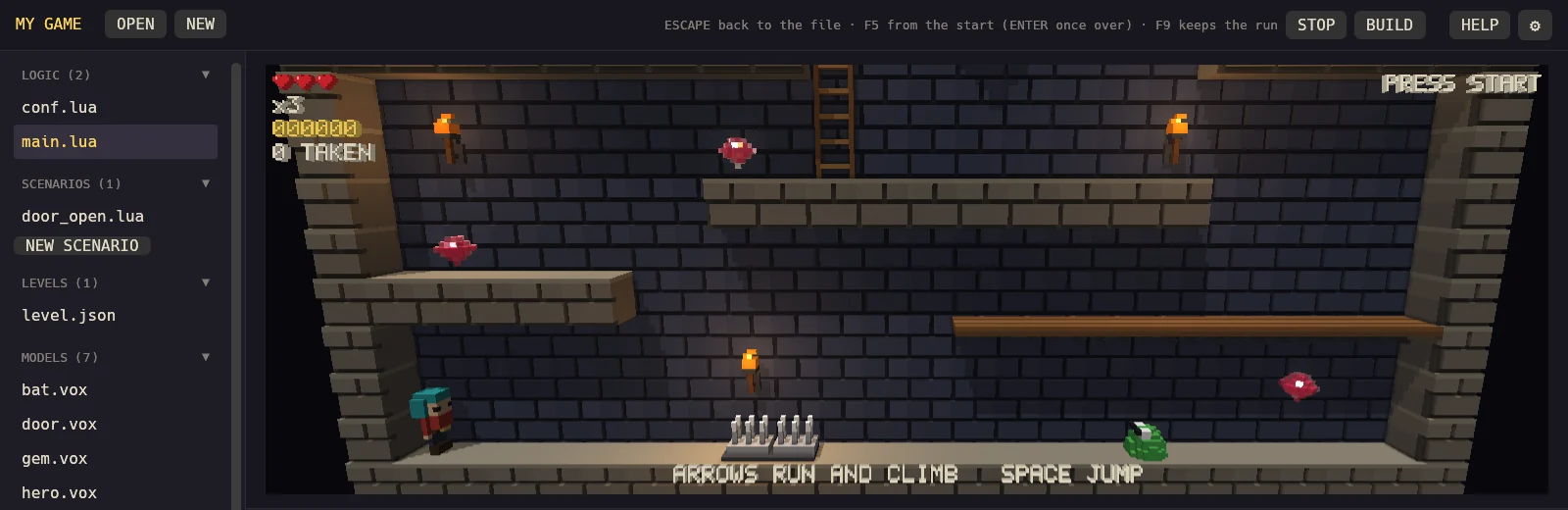
It is at the top right. Your game runs where the file was: a castle room with a hero, a slime, a bat and gems. The arrows run, Space jumps. Jump onto the slime and watch how high the hero bounces off.
Change a rule
Press Escape: the file is back. In line 11 stands how high the hero bounces off an enemy. Change 50 to 150. There is nothing to save, the IDE does that by itself.
Press PLAY again
Jump onto the slime once more: the hero now flies three times as high. You have changed your game.
That is the whole way of working: play, press Escape, change something, play again. Every number with a comment in main.lua and conf.lua is yours to change.
Where next
Change how it looks
Double-click hero.vox under MODELS on the left: the voxel editor opens in a window of its own. Paint the hero; every change is saved at once, and the game shows it.
Build the room
Double-click level.json under LEVELS: the level editor opens. Place blocks, gems and enemies.
Pass it on
BUILD at the top right packs the program and your game into one zip file in the game's builds folder, ready to give to a friend.
Learn more
HELP at the top right shows what your code can do, by example: whole small games to copy and change. The five games that come with Voxcade open with EDIT in the launcher, to see how they are made.